
Installation
The Admin Order Modifier plugin can be downloaded from the WooCommerce Marketplace or from Lemon Squeezy after completing your purchase.
- Download the plugin ZIP file from your purchase confirmation email or your account dashboard.
- In your WordPress admin, navigate to Plugins > Add New > Upload Plugin.
- Click Choose File, select the downloaded ZIP file, and click Install Now.
- Once installed, click Activate Plugin to enable the Admin Order Modifier on your store.

Configuration
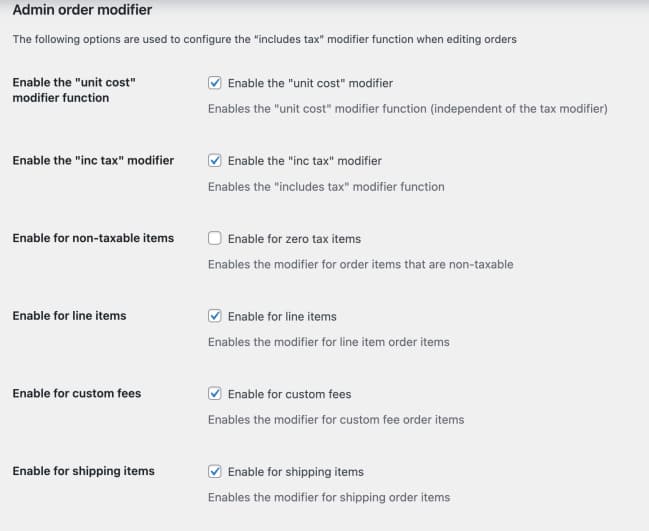
After activation, the plugin settings can be found in your WordPress admin under WooCommerce > Settings > Tax > Admin Order Modifier tab.
From the settings page, you can configure the following options:
- Enable or disable the tax inclusive display for line item pricing.
- Choose between unit cost and item total editing modes.
- Configure which columns are visible on the order edit screen.
- Set the default sort order for order items.
- Enable or disable product info popups.
- Configure price application settings for regular and sale pricing.
Editing Line Items
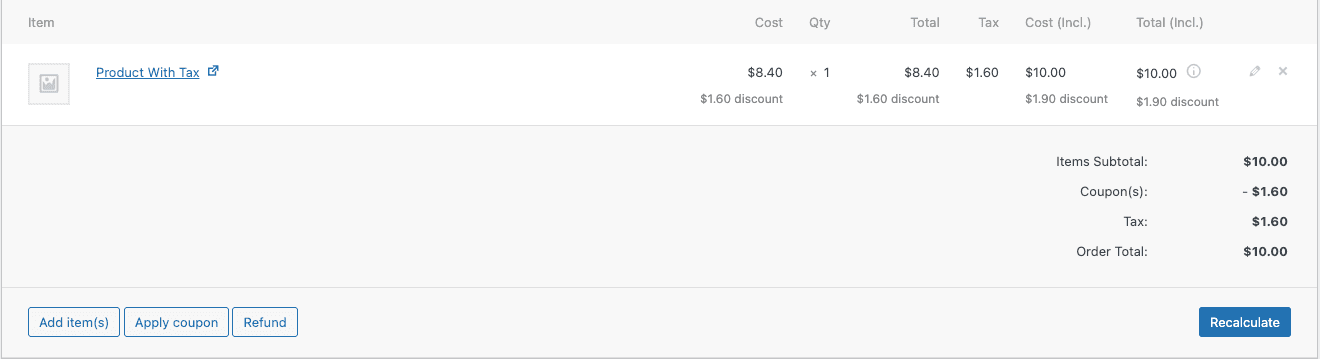
To edit a line item on an order, click the pencil icon next to the line item you wish to modify. The Admin Order Modifier enhances the default WooCommerce editing interface by showing tax-inclusive amounts alongside the standard ex-tax values.
The plugin supports two editing modes:
- Unit Cost: Edit the price per individual unit. The total will be calculated automatically based on the quantity.
- Inc Tax: Edit the line item total inclusive of tax. The ex-tax amount and tax will be calculated automatically based on the applicable tax rate.
Both modes work seamlessly with all line item types including products, custom fees, and shipping line items.
Non-Taxable Items
In some cases, certain line items on an order should not have tax applied. The Admin Order Modifier allows you to skip tax calculations for specific items. When editing a line item, you can toggle the tax calculation on or off, ensuring that items such as donations, gift cards, or other non-taxable goods are handled correctly.
This is particularly useful for stores that sell a mix of taxable and non-taxable products, or for orders that include custom fees that should not attract tax.
Column Visibility
The Admin Order Modifier allows you to configure which columns are visible on the order edit screen and their display order. This helps you customise the order management interface to show only the information that is relevant to your workflow.
To configure column visibility, navigate to the plugin settings page at WooCommerce > Settings > Tax > Admin Order Modifier and use the column configuration section to:
- Show or hide individual columns.
- Drag and drop columns to reorder them.
- Reset to the default column layout.
Product Info Popups
The plugin adds quick access to product information directly from the order edit screen. When enabled, you can hover over or click on a product name to see a popup with key product details such as:
- Product SKU
- Stock status and quantity
- Regular and sale pricing
- Product categories and tags
- Direct link to edit the product
This feature saves time by eliminating the need to navigate away from the order to look up product information.
Price Application
The Admin Order Modifier includes a price application feature that allows you to apply regular or sale pricing directly to order line items. This is especially useful when:
- A customer requests a price adjustment on an existing order.
- You need to update prices to reflect current promotions or sales.
- Line items were added manually and need their pricing corrected.
To apply pricing, click the price application button on the line item and choose between applying the regular price or the sale price from the product's current settings. The line item totals and taxes will be recalculated automatically.