Installation
The Enhanced Order Notes plugin can be downloaded from Lemon Squeezy after completing your purchase.
- Download the plugin ZIP file from your purchase confirmation email or your Lemon Squeezy account dashboard.
- In your WordPress admin, navigate to Plugins > Add New > Upload Plugin.
- Click Choose File, select the downloaded ZIP file, and click Install Now.
- Once installed, click Activate Plugin to enable Enhanced Order Notes on your store.
License Activation
After activating the plugin, you will need to enter your license key to receive updates and support. To activate your license:
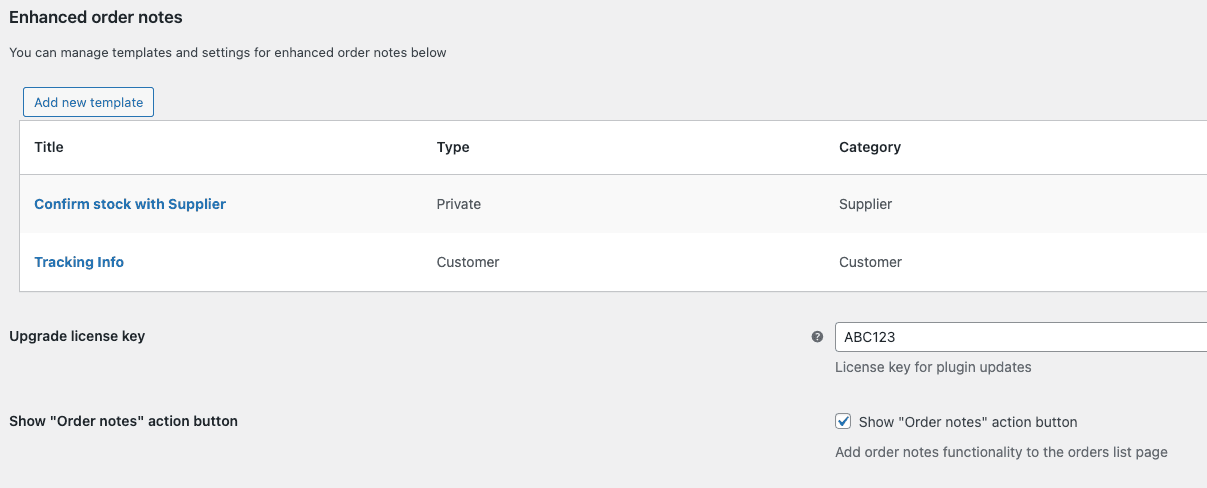
- Navigate to WooCommerce > Settings > Enhanced Order Notes in your WordPress admin.
- Enter your license key in the License Key field. You can find your license key in your purchase confirmation email or your Lemon Squeezy account.
- Click Activate License to validate and activate your key.
- Once activated, you will see a confirmation message and your license status will show as active.
Creating Templates
Order note templates allow you to create predefined notes that can be quickly applied to any order. This saves time and ensures consistency in your order communications.
To create a new template:
- Navigate to WooCommerce > Order Note Templates in your WordPress admin.
- Click Add New Template.
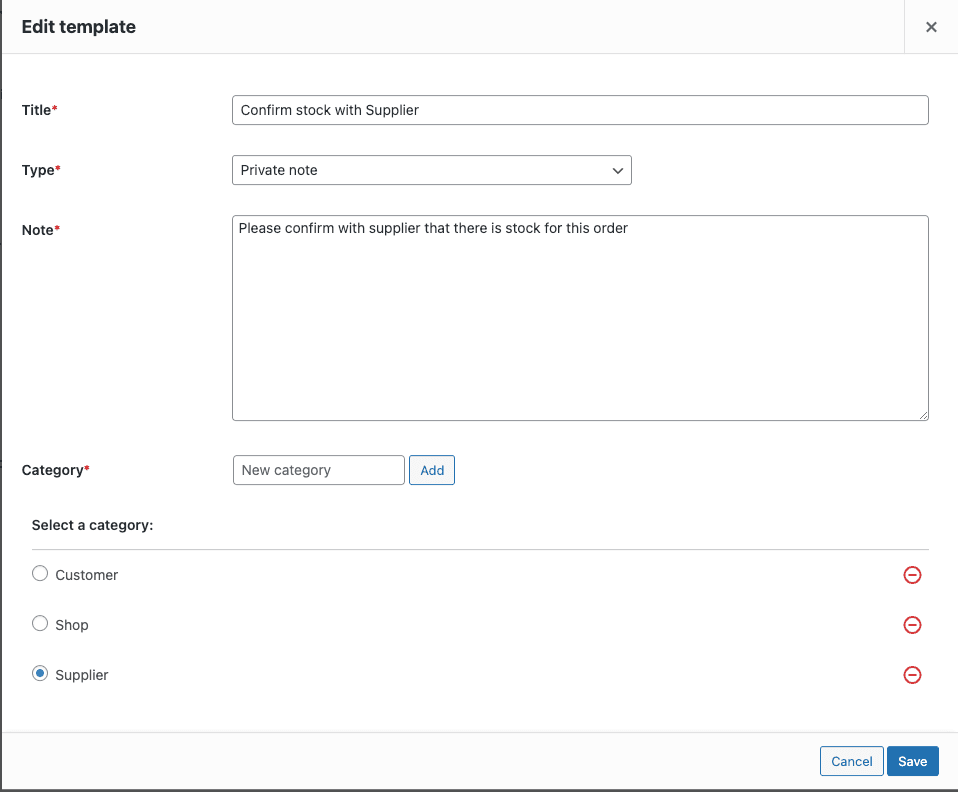
- Enter a template name for easy identification.
- Write the note content in the editor. You can use plain text or HTML formatting (if enabled).
- Assign a category to organise your templates. You can create new categories or select from existing ones.
- Choose whether the note should be sent as a private note (visible only to admins) or a note to customer (sent via email to the customer).
- Click Save Template.
To apply a template to an order, open the order edit screen and look for the Enhanced Order Notes panel. Select your desired template from the dropdown and it will be inserted into the note field, ready to be posted.
HTML Formatting
Enhanced Order Notes supports HTML formatting in your order notes, allowing you to create rich, well-formatted communications. To enable HTML support:
- Navigate to the plugin settings at WooCommerce > Settings > Enhanced Order Notes.
- Enable the Allow HTML in Notes option.
- Save your settings.

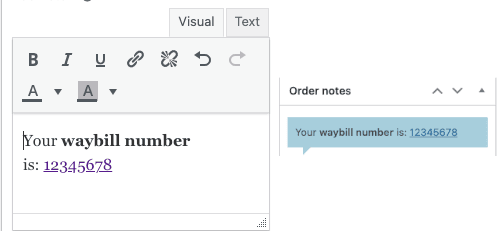
Once enabled, the order note editor will display a rich text toolbar that allows you to format your notes with:
- Bold, italic, and underlined text
- Ordered and unordered lists
- Hyperlinks
- Text colour and highlighting
- Headings and paragraphs
User Mentions
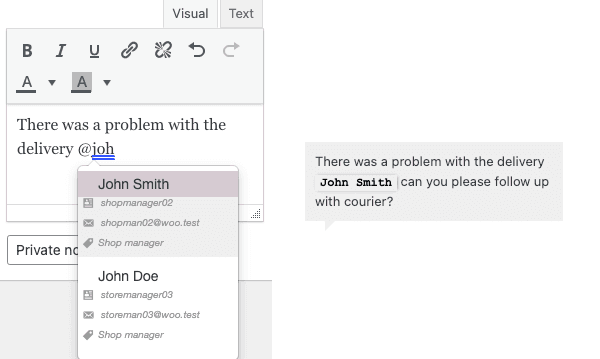
The user mentions feature allows you to tag colleagues directly within your order notes using the @ symbol. This is useful for drawing attention to specific orders, assigning tasks, or keeping team members informed.
To mention a colleague in an order note:
- Begin typing @ followed by the user's name in the order note editor.
- A dropdown list of matching users will appear. Select the user you wish to tag.
- The mentioned user will be highlighted in the note and will receive an email notification alerting them that they have been mentioned in an order note.
The email notification includes a direct link to the order, making it easy for the tagged user to view the note and take any necessary action.
Managing Notes from the Order List
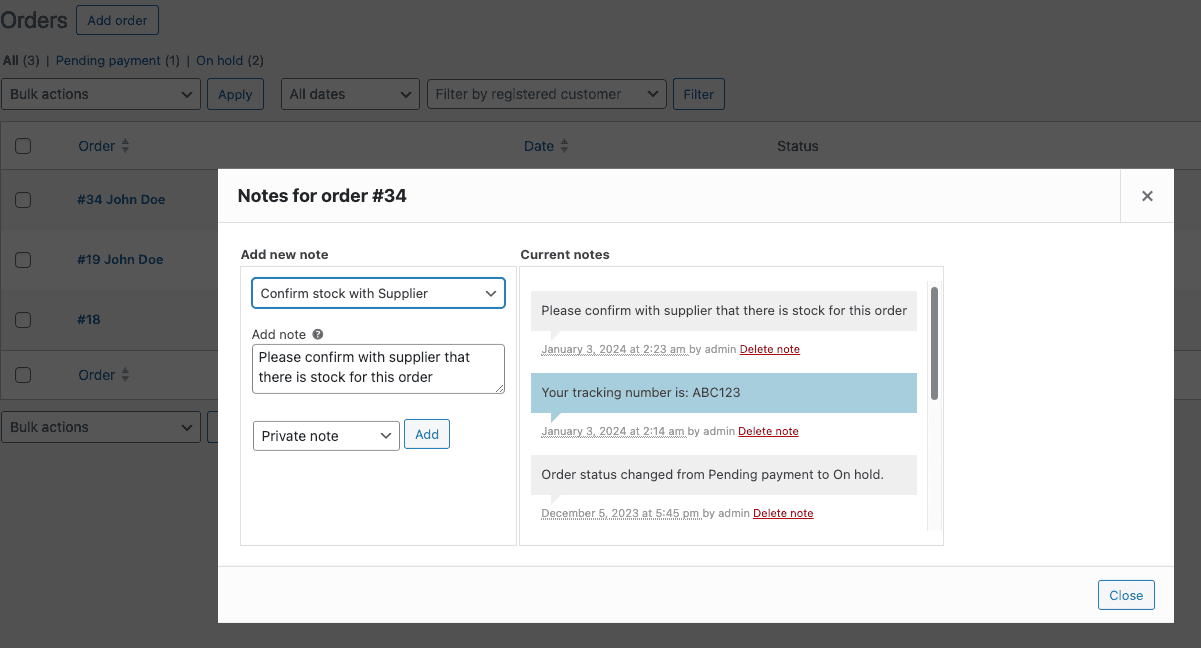
One of the most powerful features of Enhanced Order Notes is the ability to view and manage order notes directly from the WooCommerce order list screen, without needing to open each individual order.
From the order list screen, you can:
- View notes: Click the notes icon on any order row to expand and see all existing order notes inline.
- Add notes: Use the quick-add form to post new notes directly from the order list, choosing between private notes and customer notes.
- Delete notes: Remove order notes directly from the list view without navigating to the order edit screen.
- Apply templates: Select from your predefined templates and apply them to any order from the list view.
This streamlines your workflow significantly, especially when managing a large number of orders that require similar notes or updates.